Attention
TOPAS Graphical User Interface#
The Qt GUI adds a Parameter Control tab to TOPAS for quickly inspecting geometry, tweaking changeable parameters, running sequences, and capturing views. Use it for rapid prototyping; large production runs typically stay batch-only.
Version#
QT5 and QT6 are supported, and the selection of which version will be used by TOPAS is done at cmake time by adding the variables TOPAS_USE_QT and TOPAS_USE_QT6 (there is no default) as follows:
QT5 version active: -DTOPAS_USE_QT=ON -DTOPAS_USE_QT6=OFF
QT6 version active: -DTOPAS_USE_QT=ON -DTOPAS_USE_QT6=ON
The docker image only supports QT5
Enable the GUI#
Build TOPAS with Qt/OpenGL available. The GUI auto-activates on some platforms when OpenGL is requested when you add in your parameter file:
b:Ts/UseQt = "True"
Optional: to keep the default Geant4 Qt widgets use the following parameter, otherwise the TOPAS tab replaces them.:
Ts/IncludeDefaultGeant4QtWidgets = "True"
Run TOPAS normally; the Qt window opens with the TOPAS tab added.

Mouse controls (graphics window)#
Top-row Geant4 Qt icons control interaction: pick, zoom in/out, move (pan), rotate, perspective view, orthogonal view and exit. Use these to explore the scene while adjusting parameters.

Parameter Control#
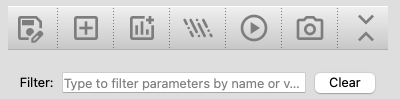
Toolbar actions#
Hover over an icon displays its funtion.
 Save: prompt for a filename (defaults to
 Ts/ChangedParametersFileorChangedParameters_1.txt) and write only parameters changed in the session. +Geom: create new geometry components. Components can optionally be placed in dipole/quadrupole fields (before the first run) and given initial translations/rotations.
 +Scorer: create new scorers, can only be added before the first run.
 +Source: create new sources, can only be added before the first run.
 Run: execute the sequence with current edits. If
 Ge/QuitIfOverlapDetectedis true and overlaps exist, the run is blocked. Capture: export the current OpenGL view to PDF.
Expand/Collapse: toggle expansion of all parameter categories.
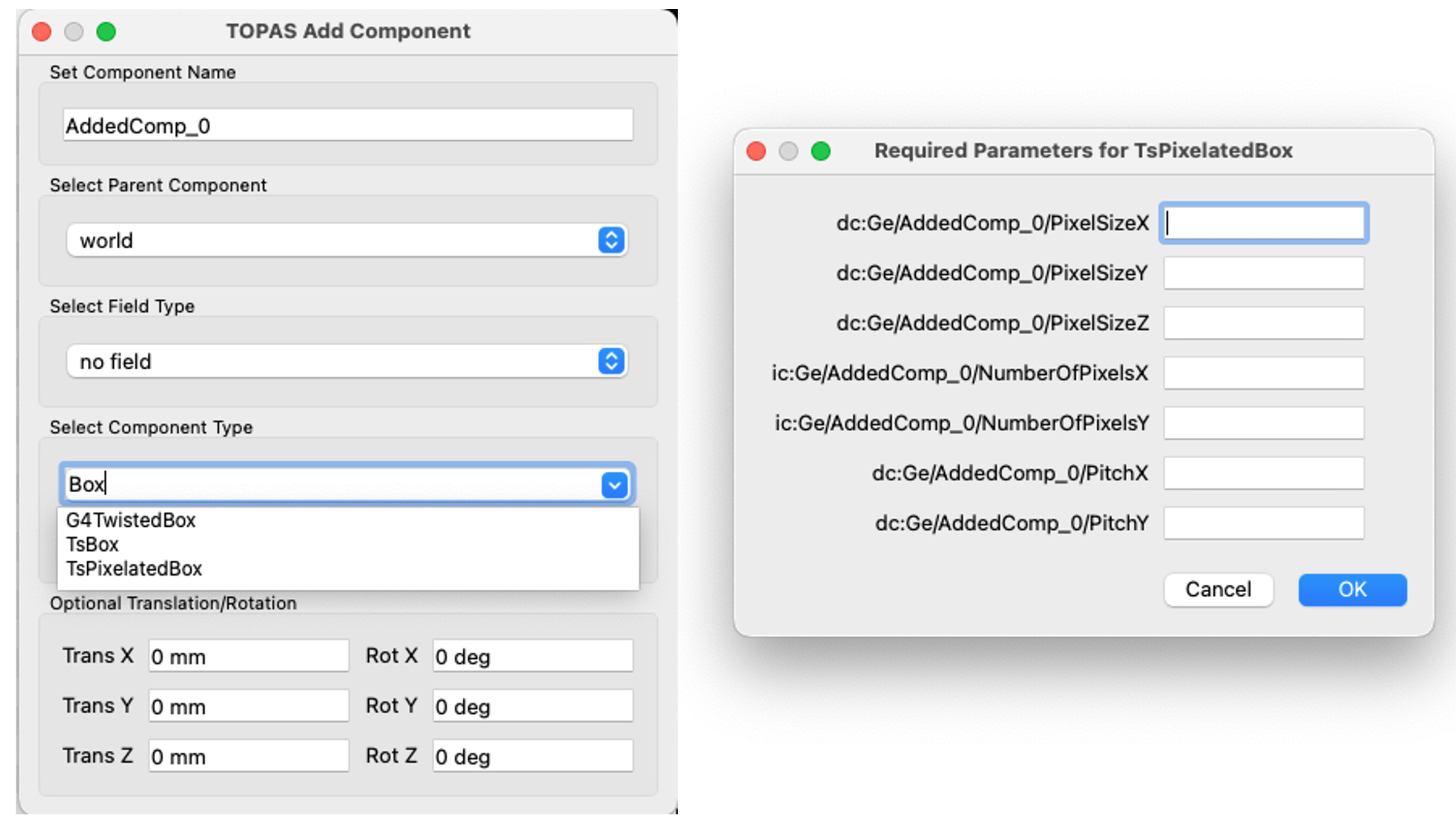
Required-parameter prompts#
The “Select Component Type” dropdown is editable with type-ahead search.
When adding components from the GUI, any known required parameters are collected up front in a dialog.
String fields are auto-quoted if you omit quotes; numeric fields still expect units when applicable.
Leaving a field blank skips adding that parameter (useful when you plan to supply defaults via include files).
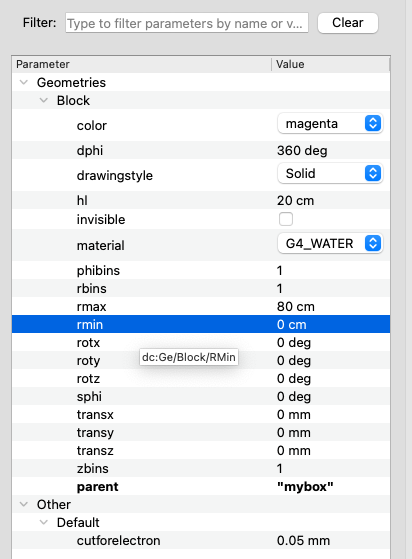
Parameter Control table#
Rows appear for parameters marked changeable: prefix the type with
c/ic/dcetc. (for exampleic:Ge/MyBox/HLX = 2). Non-changeable variants (i:...) are hidden.Items in bold are read-only (e.g., geometry type/parent, scorer quantity/component, source type). Booleans use checkboxes; enums use drop-downs; other values are inline-editable with units.
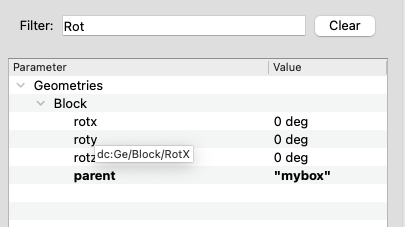
Filter bar above the tree matches names or values. Edits apply immediately; invalid entries revert with a warning.
Hover over a parameter displays its full TOPAS parameter syntax
Context menu and duplication#
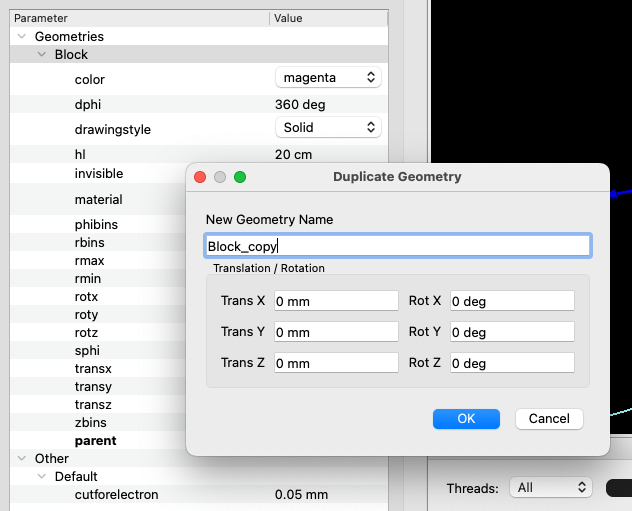
Right-click a geometry or source header in the tree to duplicate it.
Duplicate Geometry copies a component; you can override translation/rotation before creating the copy. Duplicates have not changable parameters.
Duplicate Geometry Tree copies a component and all descendants using a chosen prefix while remapping parents inside the subtree.
Duplicate Source is available only before the first run. Scorers cannot be duplicated because key scorer parameters are read-only.
Notes and tips#
Added components/scorers/sources start with suggested names; change them before creation if desired. A read-only notice can be suppressed via “Don’t show again.”
Save files from the GUI can be included in later runs to replay a GUI session in batch mode or as a starting point for scripted runs.
TsDicomPatient: when creating a geometry component using DICOM ensure that the image-to-material conversion parameters match with the name of the new component. E.g., in the examples/Patient/ files, the component name “Patient” is used, and HUtoMaterialSchneider.txt has parameters associated to this.
Extra sequence files listed in
Ts/ExtraSequenceFilesrun after the main sequence when you press Run.
More on extra sequence files#
Ts/ExtraSequenceFileslists parameter files that run after the main sequence completes. Each file is read, its parameters applied, rebuilds occur, and a fresh sequence run starts.Files must not contain
IncludeFiledirectives. If a listed file is missing, TOPAS sleepsTs/ExtraSequenceSleepIntervalbetween checks untilTs/ExtraSequenceSleepLimitis reached, then quits.Typical uses: chaining follow-on runs with small tweaks (geometry offsets, source settings, output names) or letting an external script drop in the next parameter set while TOPAS waits.
Geometry Extensions#
User-defined Geometry Extensions can self-register via
TsGeometryHub::RegisterGeometryType, so their types appear in the GUI selector automatically and can declare required fields for prompting.All registered types are listed in the GUI; user-defined extensions built with
-DTOPAS_EXTENSIONS_DIR=...shown heir own parameters.
Example: registering an extension component#
Add a small register in your component’s code before the constructor (recommended)
#include "TsGeometryHub.hh"
#include "TsMyCustomComponent.hh"

namespace {
  struct RegisterMyCustomComponent {
    RegisterMyCustomComponent() {
        TsGeometryHub::RegisterGeometryType({
            "TsMyCustomComponent",  // Canonical GUI name
            [](TsParameterManager* pM, TsExtensionManager* eM,
               TsMaterialManager* mM, TsGeometryManager* gM,
               TsVGeometryComponent* pgc, G4VPhysicalVolume* pv,
               G4String& childName) {
                return new TsMyCustomComponent(pM, eM, mM, gM, pgc, pv, childName);
            },
            /* DefaultsCreator */ nullptr, // optional; seed defaults if desired
            {   // Required-at-creation params; leave DefaultValue "" to force a GUI prompt
                {"s:Ge/{child}/InputFile", ""},  // string will auto-quote if user omits quotes
                {"dc:Ge/{child}/Size", "1. cm"}  // example with a default
            }
        });
    }
  } registerMyCustomComponent; // static instance
} // namespace

TsMyCustomComponent::TsMyCustomComponent(TsParameterManager* pM, TsExtensionManager* eM, TsMaterialManager* mM, TsGeometryManager* gM, TsVGeometryComponent* parentComponent, G4VPhysicalVolume* parentVolume, G4String& name) {;}
Notes:
Placing the register in the component’s
.ccensures registration happens when the extension is loaded; no changes to core are needed.Use
RequiredParametersto drive the GUI prompt; defaults are auto-added only when provided.